Tutorial 4 of 6
Filters, table and calendar
Beginner 5 min
Find cards by label, person, due date or a word, sort every card in a table and see due dates on a month calendar — three views of the same Laneboard board.
Big boards get crowded. Laneboard has a search field, filters and two more views that show the same cards differently. Filters apply to all three views at once.
Search
Type into Search cards in the board bar (or press /). Laneboard looks in titles, descriptions, label names, assignee names and checklist items, ignoring upper/lower case and accents — muller finds Müller. Every word you type has to appear. Escape clears the field.
Filters
Filters opens a dialog with four groups:
- Labels — tick one or more labels
- Assignees — tick people, or Nobody assigned for cards without anyone
- Due date — Overdue, Due within 7 days (or overdue), No due date or Marked done
- A card must match — Any of the chosen labels, people or due state, or All of them
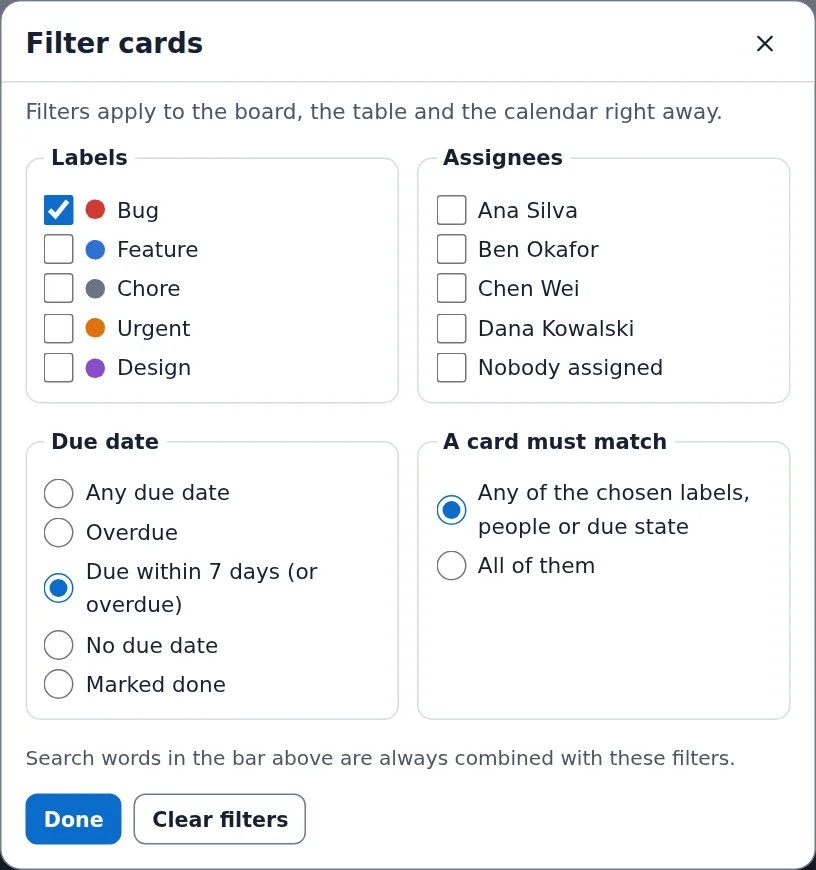
The board updates while you tick. The button then reads Filters: 2, each list notes how many of its cards are Hidden by filters, and the status bar shows Cards shown: 6 of 14 (with Bug and Due within 7 days (or overdue) on the sprint template). Clear filters brings everything back.
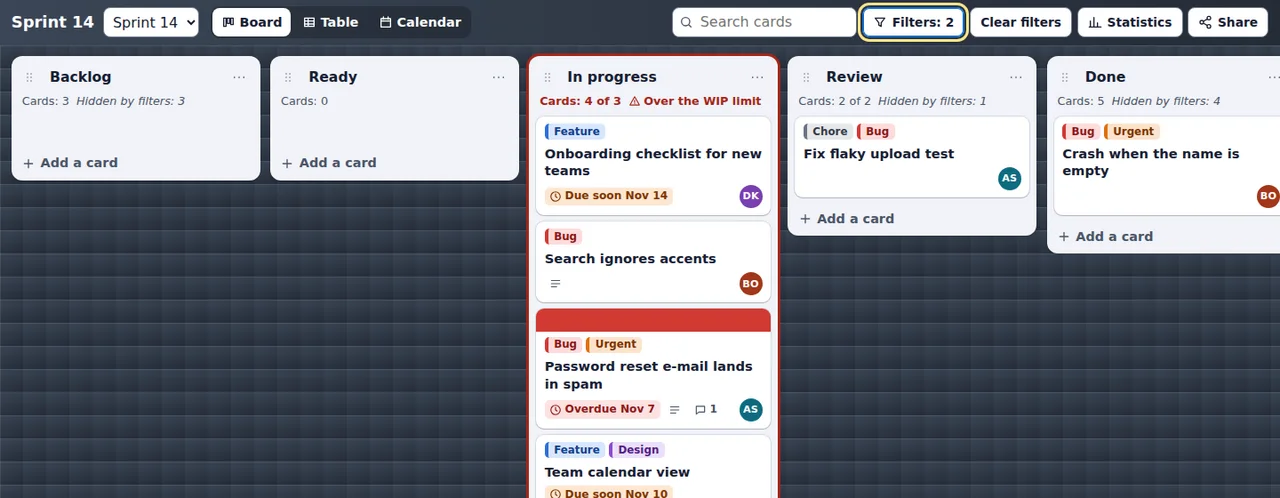
Table view
Switch views with the tabs Board, Table and Calendar or the keys 1, 2 and 3. The table lists every open card with its list, labels, assignees, due date and checklist progress. Select a column title to sort by it; select it again to reverse the order. The title of each card opens its details.
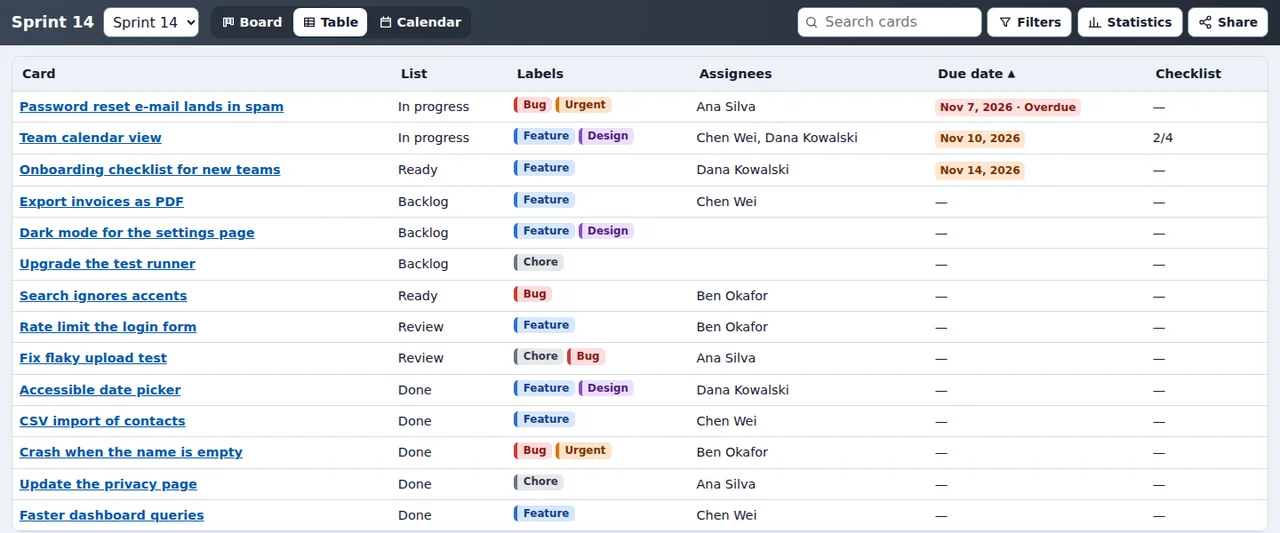
The table is handy for a quick review before a meeting, and it is easy to read with a screen reader: every column has a header and the sort order is announced.
Calendar view
The calendar puts cards on their due dates. Previous month, This month and Next month move through the year; today has a blue frame. Cards marked done carry a check mark, overdue cards are red, and cards with a time show it first (for example 08:00 Seed swap announcement). Below the calendar Laneboard tells you how many cards have no due date and are therefore not shown.
To change a date, open the card from the calendar and use Due date — see Cards in detail.
File → Print the board… prints the lists without toolbars and buttons, wrapping lists onto several rows if needed.
Ready to try it?