Tutorial 3 of 6
Moving cards by mouse, touch and keyboard
Beginner 6 min
Drag cards and lists with the mouse or a finger, or move them with Space and the arrow keys while a screen reader announces every step; plus WIP limits that warn when a list is too full.
Moving a card from one list to the next is the heart of a kanban board. Laneboard offers three ways that all lead to the same result — and every move can be undone with Ctrl+Z.
With the mouse
Press on a card, drag it and let go over a list. A coloured line shows where the card will land; near the edges the board scrolls along. Lists move the same way by their grip handle (the six dots before the list name). A click without dragging still opens the card.
On a phone or tablet
Press and hold a card for a moment until it lifts, then drag it. A quick swipe without holding scrolls the board as usual, so you can still move around long boards with one finger.
With the keyboard
- Move the focus to a card with Tab and press Space. The card lifts and gets an orange outline.
- Arrow up and Arrow down move it within its list; Arrow left and Arrow right move it into the neighbouring list (in right-to-left languages the directions follow the layout). Home and End jump to the top or bottom.
- Space or Enter drops the card. Escape puts it back where it was.
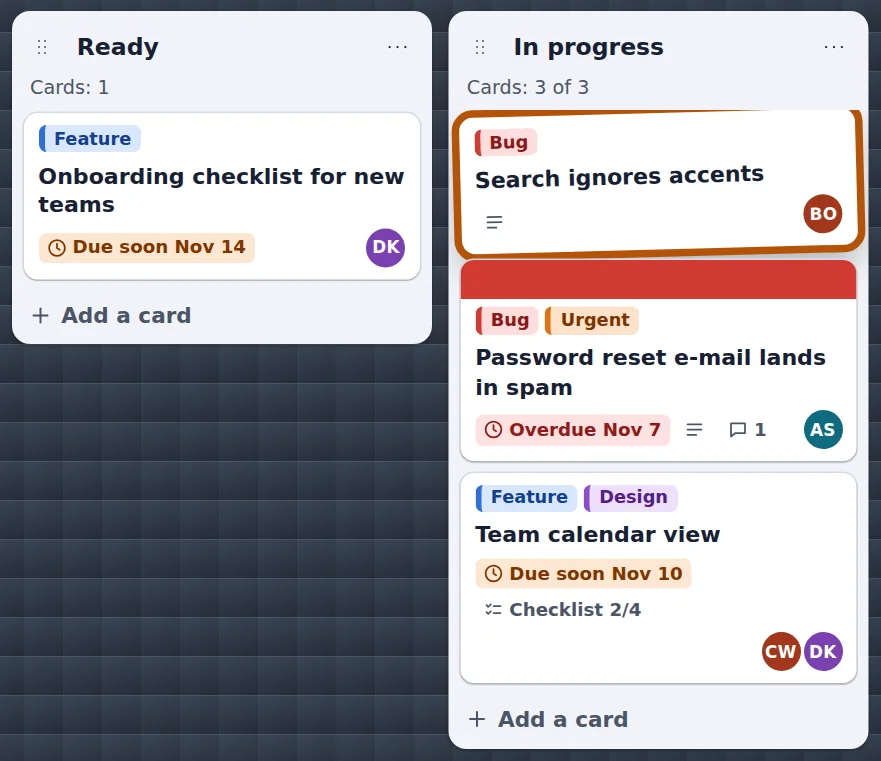
Screen readers hear each step in plain words: “Picked up card Search ignores accents. List Ready, position 1 of 2.” — then “List In progress, position 1 of 3.” — and after dropping “Card Search ignores accents moved to list In progress, position 1.” The whole move counts as a single step for undo, and the card history notes one move, not every arrow press.
Lists move the same way: focus the grip handle, press Space, use Arrow left and Arrow right, drop with Space. The list menu also has Move list left and Move list right.
If you prefer a dialog, open the card and choose Move…: pick the board, the list and the position from three lists. That is also the way to move a card to another board.
WIP limits
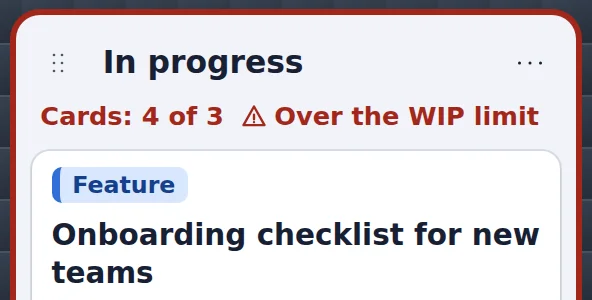
Kanban works best when a list does not fill up with half-finished work. Open a list’s ⋯ menu and choose WIP limit…. With a limit of 3, the list shows Cards: 2 of 3; with a fourth card it turns red and says Over the WIP limit in words. Laneboard does not block the move — it only makes the problem visible. A limit of 0 removes it.
Filters and moves
When filters hide some cards, the positions you see are the ones that count: a card dropped between two visible cards lands between them, and hidden cards keep their places. More about filters in Filters, table and calendar.
Shortcuts at a glance
Help → Keyboard shortcuts (or ?) lists all keys. Single-key shortcuts (N, /, 1–3, ?) can be switched off there if they get in the way of your screen reader or speech input.
Ready to try it?