Tutorial 2 of 6
Cards in detail — labels, people, dates, checklists and notes
Beginner 7 min
Everything a Laneboard card holds: Markdown notes, coloured labels, assignees, a due date from the accessible date picker, checklists, links, comments and a cover colour.
Select a card (or press Enter on it) to open its details. Changes are saved as you make them; Escape closes the dialog and puts the focus back on the card.
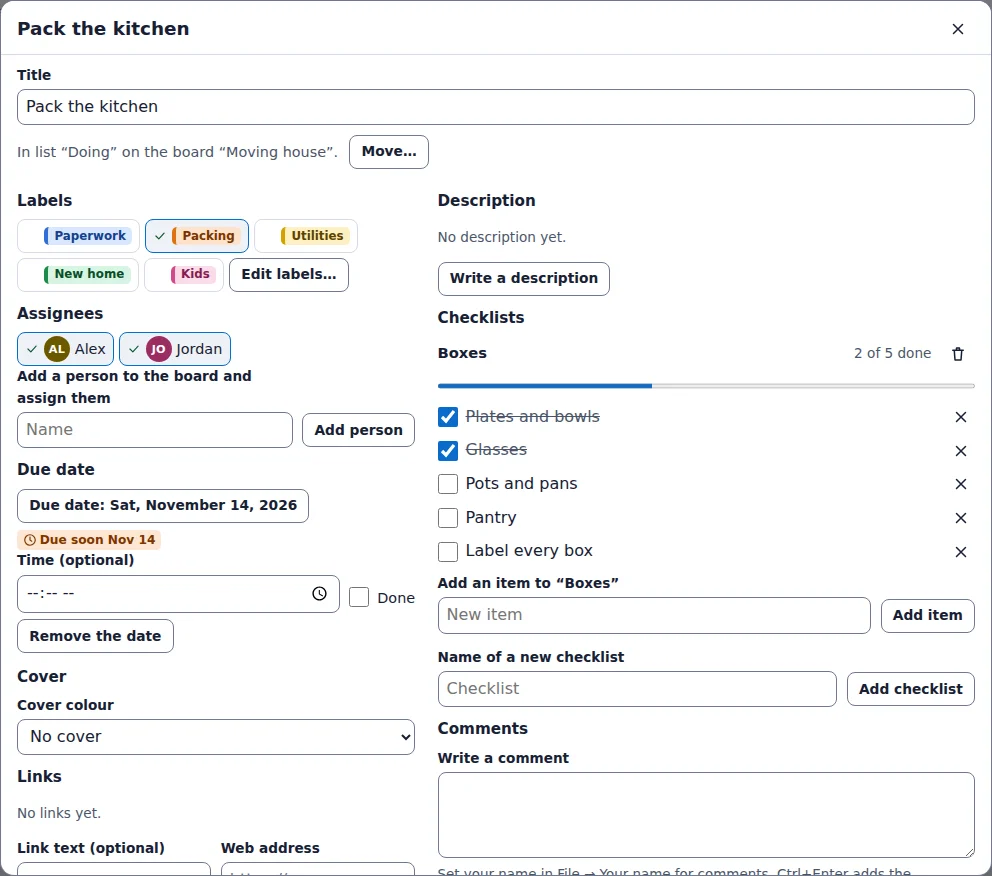
Title and list
The Title field renames the card. The line below says which list and board it is in; Move… sends the card to another list, position or even another board of the project. Labels and people move along: when the target board has no label or person with the same name, Laneboard creates one.
Labels and assignees
Labels have a name and a colour. The name is printed on the card, so labels never depend on colour alone. Select a label to switch it on or off for this card; Edit labels… opens the label list of the board, where you rename, recolour, add or delete labels (deleting removes the label from every card).
Assignees are just names on the board — nobody gets an account or a message. Their initials appear on the card. Type a name under Add a person to the board and assign them to add someone new; Board → People… manages the list.
Due date
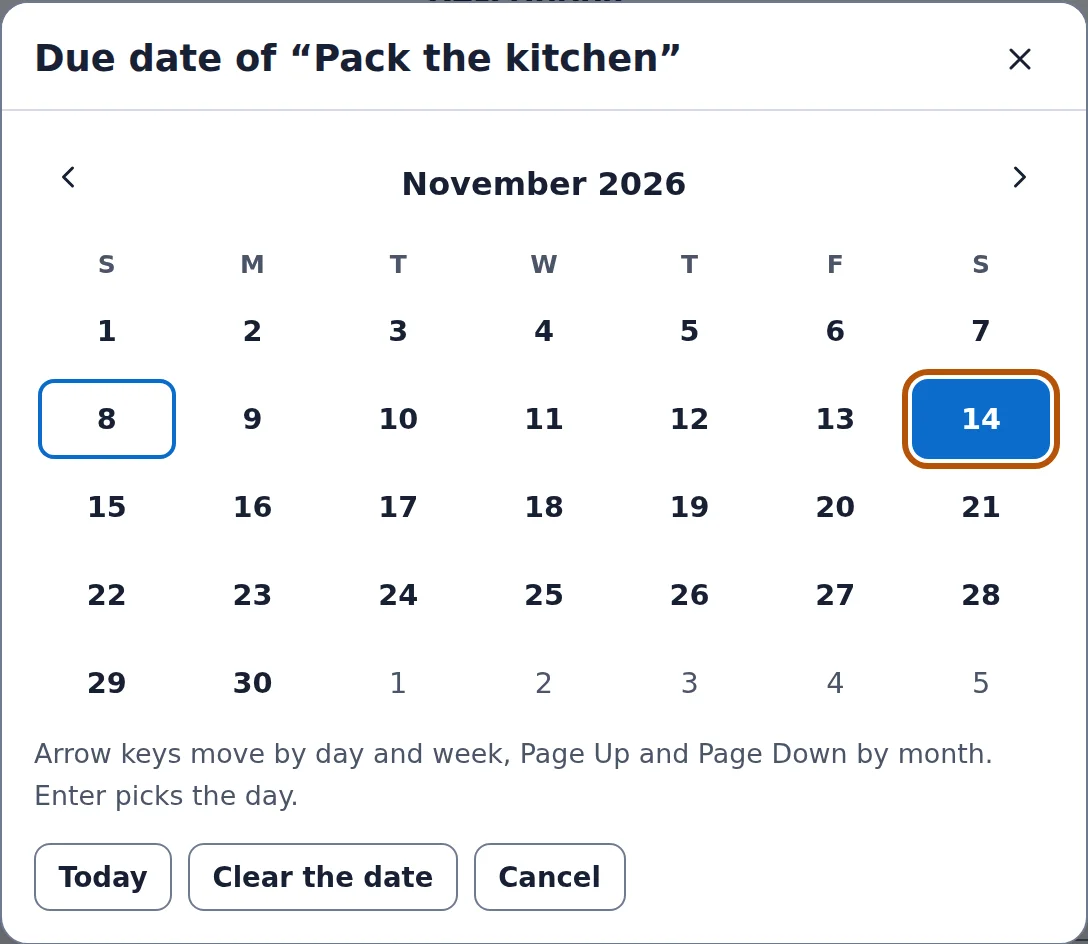
Set a due date… opens the date picker. It works completely with the keyboard:
- arrow keys move by day and by week
- Page Up / Page Down move by month, with Shift by year
- Home / End jump to the start or end of the week
- Enter picks the day, Escape closes without a change
The week starts on the day that is usual for your language. Today and Clear the date are buttons below the calendar.
After choosing a date you can add a Time (optional) and tick Done when the work is finished. On the board the card then shows a badge such as Due soon, Due today, Overdue or Done — always as text with an icon, not as a colour only.
Description in Markdown
Write a description opens a text field that understands Markdown: **bold**, *italic*, backticks around code, headings with #, lists with -, tasks with - [ ] and - [x], quotes with >, simple tables and links like [text](https://…). Ctrl+Enter saves, Escape cancels.
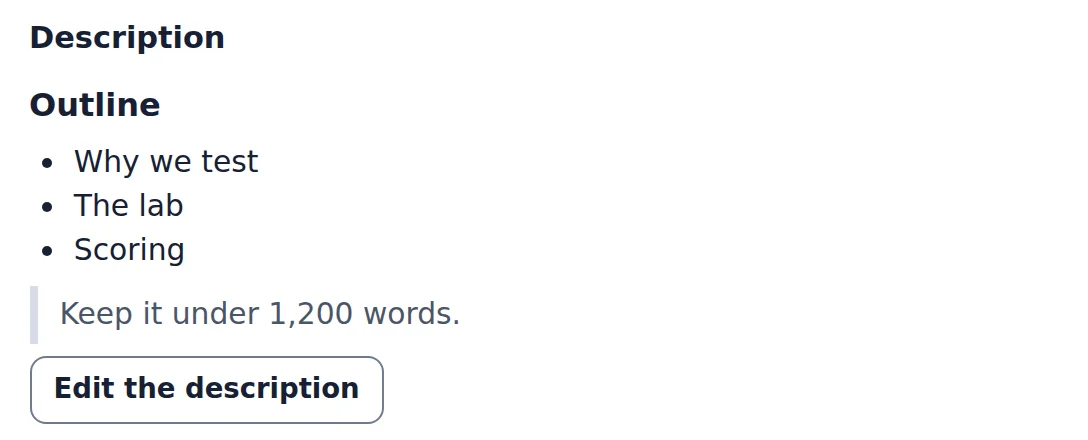
Laneboard draws the description itself from Deckwright’s Markdown parser: raw HTML stays visible as text, and only web and mail links are turned into links. Tasks written in the description are counted on the card (for example Tasks 1/3).
Checklists, links, comments and cover
- Checklists: give a checklist a name, add items, tick them off. The progress bar and the card badge (Checklist 2/5) follow.
- Links: a web address with an optional text. Files are not uploaded anywhere — link to a document in your own storage instead.
- Comments: set your name once in File → Your name for comments…; comments show the name and the time. Ctrl+Enter posts.
- Cover colour: a coloured band at the top of the card.
Activity at the bottom lists when the card was created, moved, archived or completed. The statistics use this history.
At the very bottom: Archive the card, Duplicate and Close. Archived cards disappear from the board but can be restored from View → Archived items….
Ready to try it?