Tutorial 1 of 6
Your first board in five minutes
Beginner 5 min
Open a board template, add lists and cards, rename them and keep everything in your browser — the basics of Laneboard, step by step.
Laneboard keeps your work on boards. A board has lists side by side — for example To do, Doing and Done — and every list holds cards, one per task. You move a card from list to list as the work goes on. Everything stays in this browser: there is no account and nothing is sent to a server.
Start from a template
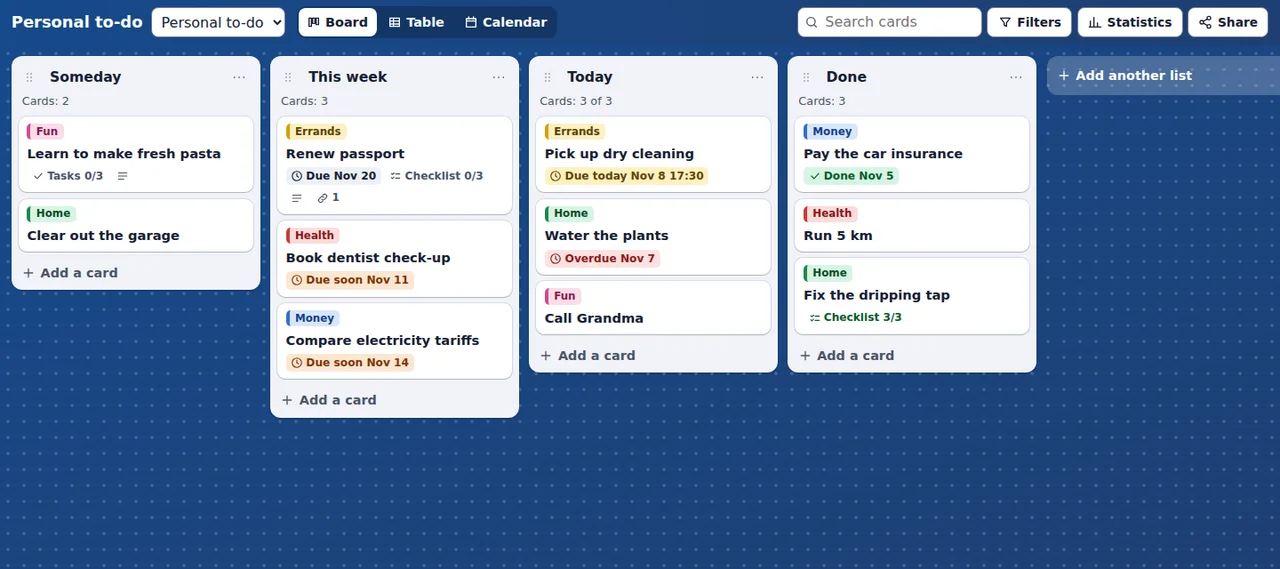
The first time you open Laneboard it shows the template Personal to-do. Choose File → Templates… to see all five:
- Personal to-do — Someday, This week, Today (with a limit of three cards) and Done
- Sprint board — Backlog to Done for a small team, with bugs and features
- Content calendar — ideas to published posts, with publishing dates
- Hiring pipeline — one card per candidate
- Moving house — packing, paperwork and utilities around moving day
Each template has two buttons: Open as a new project starts fresh, Add as a board puts the board next to the ones you already have. The dates in a template are set relative to today, so some cards are always due soon or overdue.
Add cards and lists
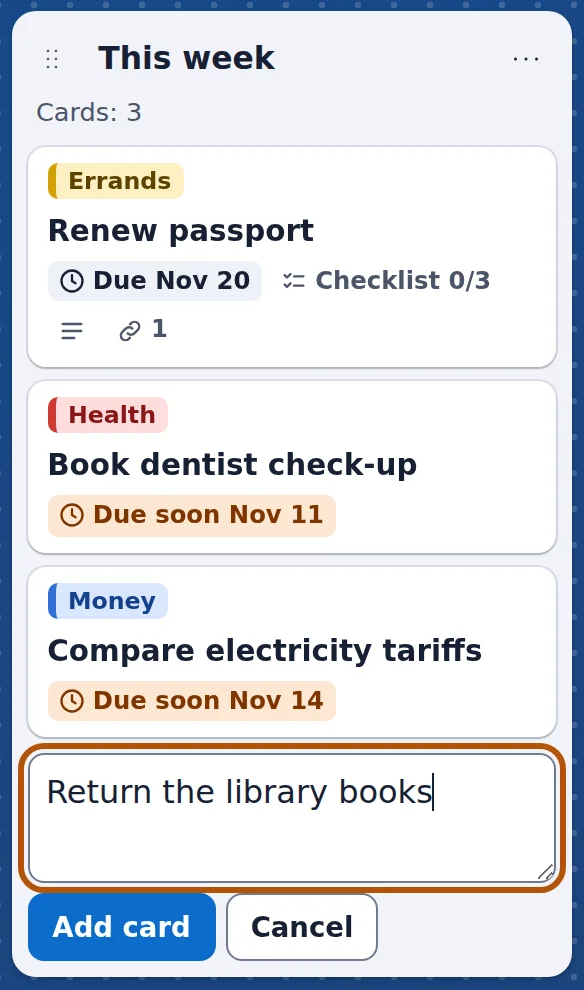
At the bottom of every list there is Add a card. Type a title and press Enter — the card is added and the field stays open for the next one. Shift+Enter starts a new line, Escape closes the field. The key N opens the field in the list that holds the keyboard focus.
To add a list, use Add another list after the last list (or Edit → Add a list). Lists can be renamed by selecting their title: type the new name and press Enter, or Escape to keep the old one.
Each list has an actions menu (the ⋯ button) with Add a card, Rename list, WIP limit…, Move list left / right, sorting by due date or title, Archive all cards in this list and Archive this list.
Several boards
A project can hold up to 50 boards. Board → New board… creates an empty board or one from a template; the selector next to the board title switches between them. Board → Board settings… changes the name, the description, the background colour and a pattern (dots, grid, diagonal lines or waves). The lists always sit on a solid surface, so the background never makes text hard to read.
Saved automatically
Laneboard saves every change in this browser a moment after you make it. File → Recent projects… lists what is stored here. To keep a copy elsewhere, use File → Save file (Ctrl+S): it writes a .laneboard.json file that File → Open file… opens again on any device. Edit → Undo (Ctrl+Z) and Redo (Ctrl+Shift+Z) work for every change, including moves.
Next: what a card can hold.
Ready to try it?