Tutorial 6 of 6
Trello import, CSV, share links and backups
Intermediate 7 min
Bring Trello boards over from their JSON export, import or export tables as CSV, share a read-only snapshot as a link and keep backups of your Laneboard projects.
Laneboard is local-first: your boards live in this browser. This tutorial shows every way in and out.
Import a Trello board
- In Trello, open the board menu, choose Print, export and share, then Export as JSON, and save the file.
- In Laneboard choose File → Import a Trello export… and pick that file. (File → Open file… recognises Trello exports too.)
- Check the summary and select Add the board.
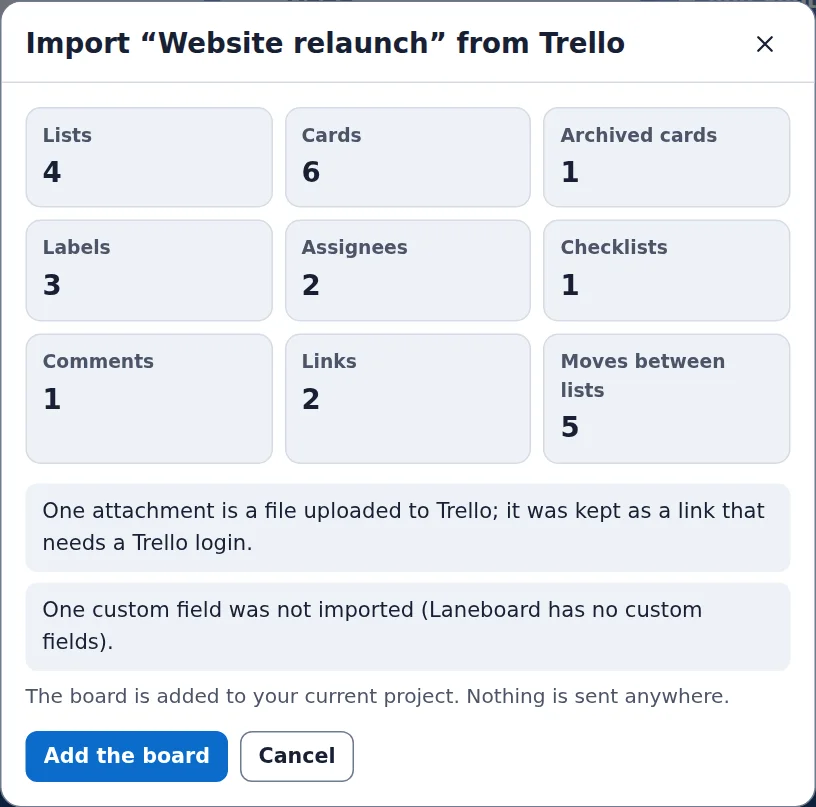
The file is read in your browser; Laneboard never connects to Trello. This is how the fields are mapped:
| Trello | Laneboard |
|---|---|
| Lists (in Trello’s order), closed lists | Lists, archived lists |
| Card name and description | Card title and Markdown description |
| Labels with colours | Labels (light/dark shades become the base colour, black and colourless labels grey) |
| Members | Assignees (full name, otherwise user name) |
| Due date and “complete” | Due date and time (in UTC) and Done |
| Checklists and their items | Checklists |
| Comments | Comments with author and time |
| Card moves between lists | Card history for the statistics |
| Attachments with a web address | Links |
| Cover colour, board background | Cover colour, nearest background colour |
Files uploaded to Trello stay on Trello: they come over as links that need a Trello login. Custom fields, power-ups, stickers, votes, start dates and image covers are not imported, and the summary counts what was left out. Trello’s JSON export holds only the latest 1000 actions, so very old comments and moves can be missing.
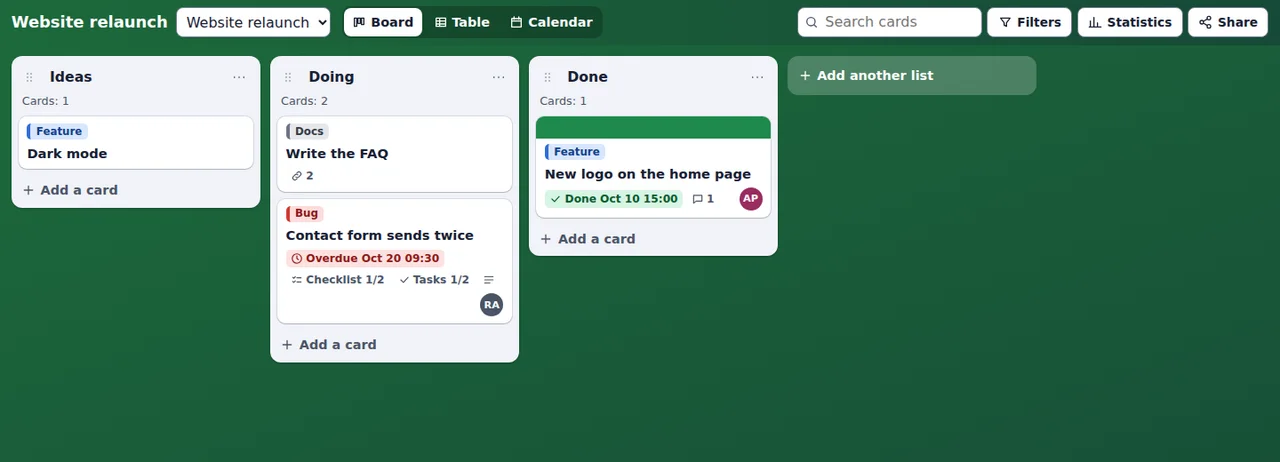
The same conversion is available as the tool laneboard-trello-import, which returns a .laneboard.json file.
Tables (CSV)
File → Import a table (CSV)… turns a spreadsheet into a board: one card per row. Columns are recognised by their headers — Title (or Name, Task), List (or Status, Column), Labels, Assignees, Due and Description; several labels or people are separated by semicolons. File → Export the board as CSV writes one row per card with its list, position, labels, assignees, due date, checklist progress and description, ready for a spreadsheet.
Share a read-only link
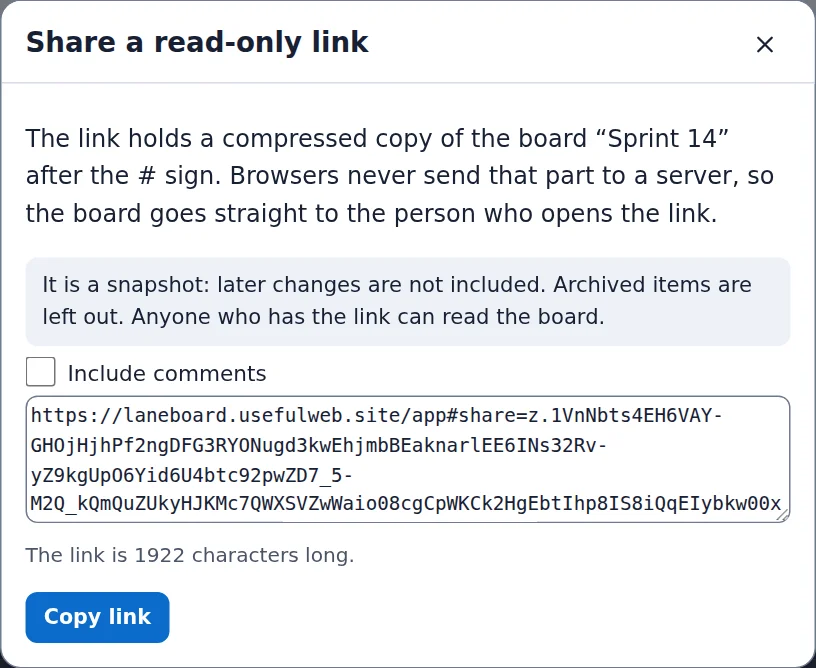
Share in the board bar makes a link that contains a compressed copy of the board after the # sign. Browsers never send that part of an address to a server, so the board goes straight from you to the person who opens it. Comments are left out unless you tick Include comments; archived items are always left out. The dialog shows how long the link is.
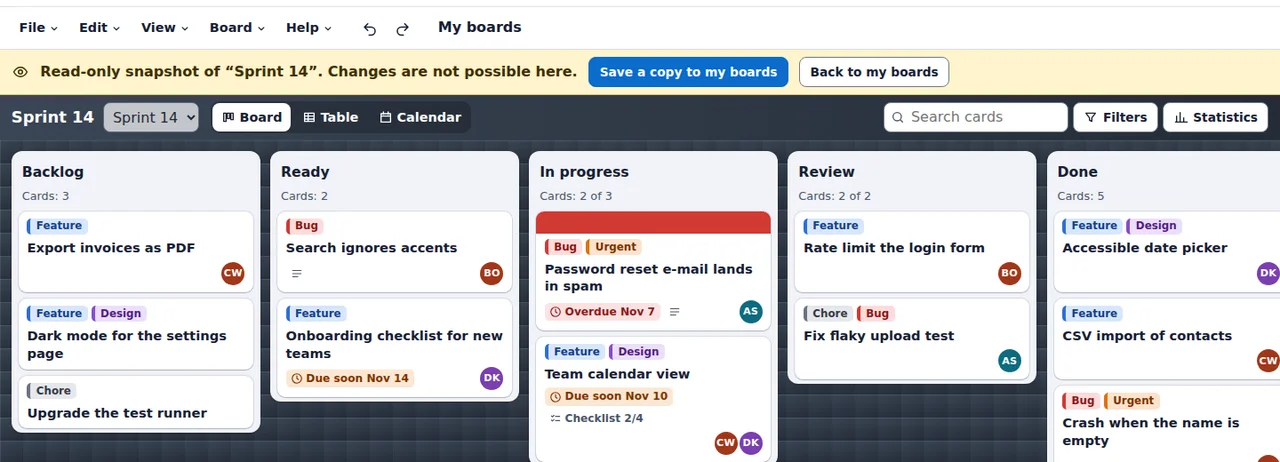
Whoever opens the link sees the board read-only, with a yellow bar on top. Save a copy to my boards adds it to their own boards; Back to my boards leaves the snapshot. A snapshot does not change when you keep working on your board — share a new link instead.
Backups
- File → Save file writes the whole project, all boards included, as a
.laneboard.jsonfile. - Bundlekeep collects the projects of every app, Laneboard included, into one backup file.
- Signed in with Google Drive, the top bar also offers Save to Drive.
Clearing the browser’s site data deletes the boards stored there, so keep a file if a board matters to you.
Ready to try it?